Sign in to save 4K wallpapers, collect daily Picoins, and access your profile.
Loading Blog...
How to Add Multiple Wallpapers on iPhone Easily | Picmaze
Blog
How to Add Multiple Wallpapers on iPhone Easily
By Picmaze Team/Apr 7, 2026/7 min read/60 views
How to Quickly Add More Than One Wallpaper to Your iPhone
Starting
You're not the only one who wants to do more than just change the background on your iPhone. With the latest iOS updates, Apple has made it very easy to add more than one wallpaper to your iPhone and switch between them. This feature lets you completely change the look of your device, whether you want to change the wallpaper for work, relaxation, or just to look good.
This guide will show you how to set up more than one wallpaper, make your own lock screens, and change your wallpaper on its own. We'll also talk about advanced tips, common mistakes, and expert strategies for making your iPhone stand out.
By the end of this article, you'll know how to fully customise your iPhone experience like a pro, and you won't need any third-party apps.
H2—Main Explanation: What Does "Multiple Wallpapers" Mean on an iPhone?
Putting more than one wallpaper on your iPhone doesn't just mean saving more than one picture. This is the system that lets you change the lock screen on your iPhone or iPad starting with iOS 16.
You can do the following with this system:
Make a lot of lock screens, each with a different picture as the background.
Link each wallpaper to Focus Modes.
With a swipe, you can change your wallpaper.
Change the styles, fonts, and widgets
This means that your iPhone can change to fit your needs, like being serious at work and having fun at home.
H2: A Close Look at How to Put More Than One Wallpaper on Your iPhone
Follow these simple steps to put more than one wallpaper on your iPhone:
Step 1: Open the settings for customising the lock screen.
Add things like a clock, weather, battery, and more.
Change the styles and colours of the fonts.
Change the effects of depth
Step 4: Pick out a pair of wallpapers
Choose whether to set for:
Just the lock screen
The Main Screen
Both
Step 5: Add More Backgrounds
To make more lock screens, just do the same thing again.
Step 6: Change the Backgrounds
To switch right away, swipe left or right on the lock screen.
H2—How to use more than one wallpaper on your iPhone
These are the main things that make this system so strong:
Quick Switching: Swipe to change your wallpaper right away.
Focus Mode: Link wallpapers to Work, Sleep, or Personal modes
Personalise widgets: add useful ones
Depth Effect: The subject stands out to give the picture a 3D look.
Dynamic Backgrounds: The stars and the weather change in real time.
H2—Pros and Real-World Examples
Not only does using more than one wallpaper on your iPhone look better, it also makes it easier to use.
1. Work-Life Balance
Use a simple, clean wallpaper for work.
Use bright or personal pictures for fun.
2. Personalisation Based on Mood
Wallpapers that make you feel better
Wallpapers in bright colours to help you stay on task
3. Better planning
Give focus modes wallpapers.
Know what mode you're in right away
4. Seasonal Themes
Change the wallpaper for the holidays or the seasons.
5. Personal Expression
Use pictures to show who you are.
H2: Tips and advice from experts
To get the most out of this feature, follow these expert tips:
Use Pictures That Are High-Quality
Always choose HD or 4K wallpapers for the best visual experience.
Put Widgets on Your Wallpaper
Make sure that the background doesn't make it hard to read the text and widgets.
Use the Depth Effect Smartly
To get better layering effects, pick pictures with clear subjects.
Sort by Focus Modes
Connect the following to wallpapers:
Work
Health
Get some rest
Time for you
Make it easy
Don't use wallpapers that are too busy if you use a lot of widgets.
H2—Things You Shouldn't Do
People often make these mistakes, even though the feature is easy to use:
Using low-resolution pictures
Makes wallpapers look pixelated or blurry.
Too many gadgets
Your screen will look messy if you have too many widgets.
Not paying attention to differences
Text is hard to read when the background is busy.
Not Using Focus Modes
Not getting the benefits of automation.
Forgetting to save changes
Check your wallpaper setup every time.
H2—Image Section (AI Image Prompts)
These are some professional image prompts you can use:
Image 1
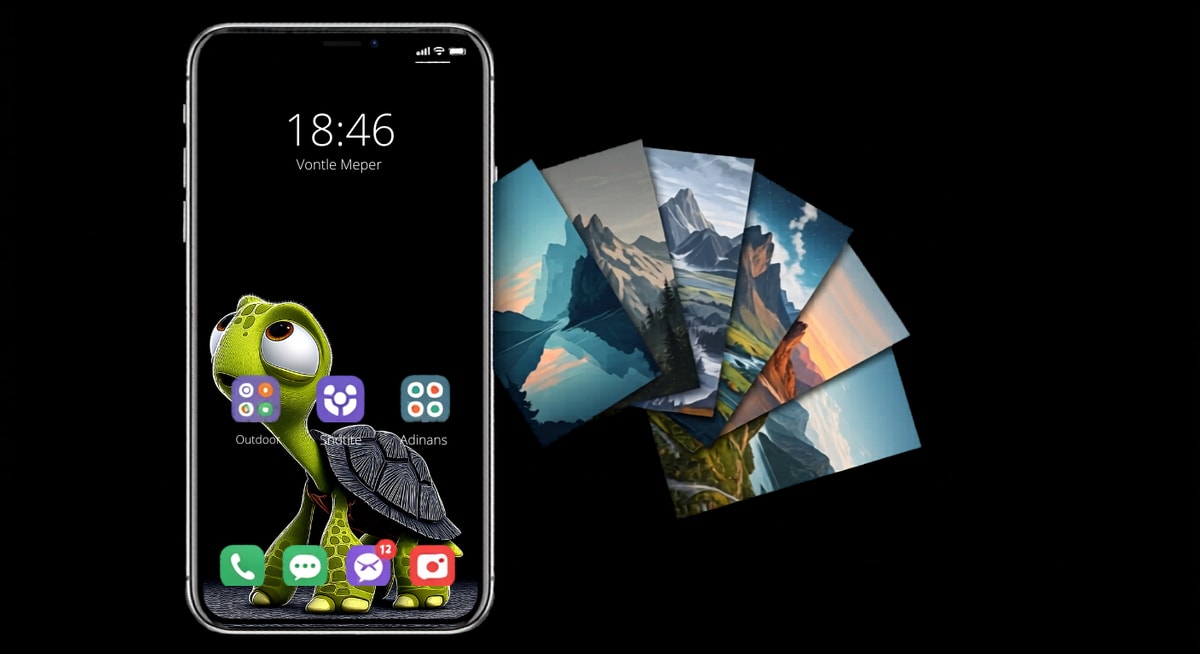
A modern iPhone lock screen with a sleek design, bright colours, realistic lighting, and an interface that lets you swipe through a lot of wallpaper options.\
ALT text: the ability to swipe between different wallpapers on an iPhone\
The name of the file is iphone-wallpaper-swipe-ui.jpg.
Image 2
Prompt: Customisation screen for the iPhone lock screen with widgets, clock styles, and a way to change the wallpaper. The design is simple, and the resolution is high.\
ALT text: screen for customising the iPhone lock screen\
The name of the image file is iphone-lock-screen-customisation.jpg.
Image 3
A grid of beautiful iPhone wallpapers with themes like nature, abstract art, minimalism, and darkness\
ALT text: a set of pretty iPhone backgrounds\
The file is called 'iphone-aesthetic-wallpapers'. jpg.
H2—Questions and Answers
1. Is it possible to have different wallpapers on my lock screen and home screen?
Yes, you can make each screen on your iPhone have a different wallpaper.
2. How many wallpapers can I put on my iPhone?
You can make as many lock screens as you want and switch between them. There isn't a strict limit.
3. Does changing the wallpaper help the battery last longer?
Static wallpapers don't use much battery, but dynamic wallpapers might use a little more.
4. Is it possible to make changes to the wallpaper automatically?
If you connect your iPhone to Focus Modes, it can change the wallpaper on its own.
5. Do I need an iPhone with iOS 16 or a newer version?
Yes, you can use more than one wallpaper and change the lock screen in iOS 16 and later.
H2—Final Thoughts
Learning how to add multiple wallpapers is one of the easiest ways to make your iPhone more personal and make your daily life better. Apple's powerful customisation options let you change the look, feel, and function of your lock screen in just a few seconds.
Not only does this feature look good, but it also boosts productivity and creativity. By combining wallpapers with widgets and Focus Modes, your iPhone becomes smarter and more tailored to your lifestyle.